
Deploy Director OVAs in this order:
Fabric Server OVA
API Server OVA
LPSM OVA
Prerequisites
You must deploy Fabric Server OVA and install Fabric Server before deploying the API Server OVA.
Director OVA must only be deployed in Virtual Machines that are booted in BIOS mode.
Steps to Deploy Director OVAs
Go to the Logpoint Help Center and download the OVA file for Fabric Server, API Server or LPSM.
Log in to your vSphere client.
Click the Host and Cluster icon.
Right-click the appropriate resource pool, and select Deploy OVF Template.
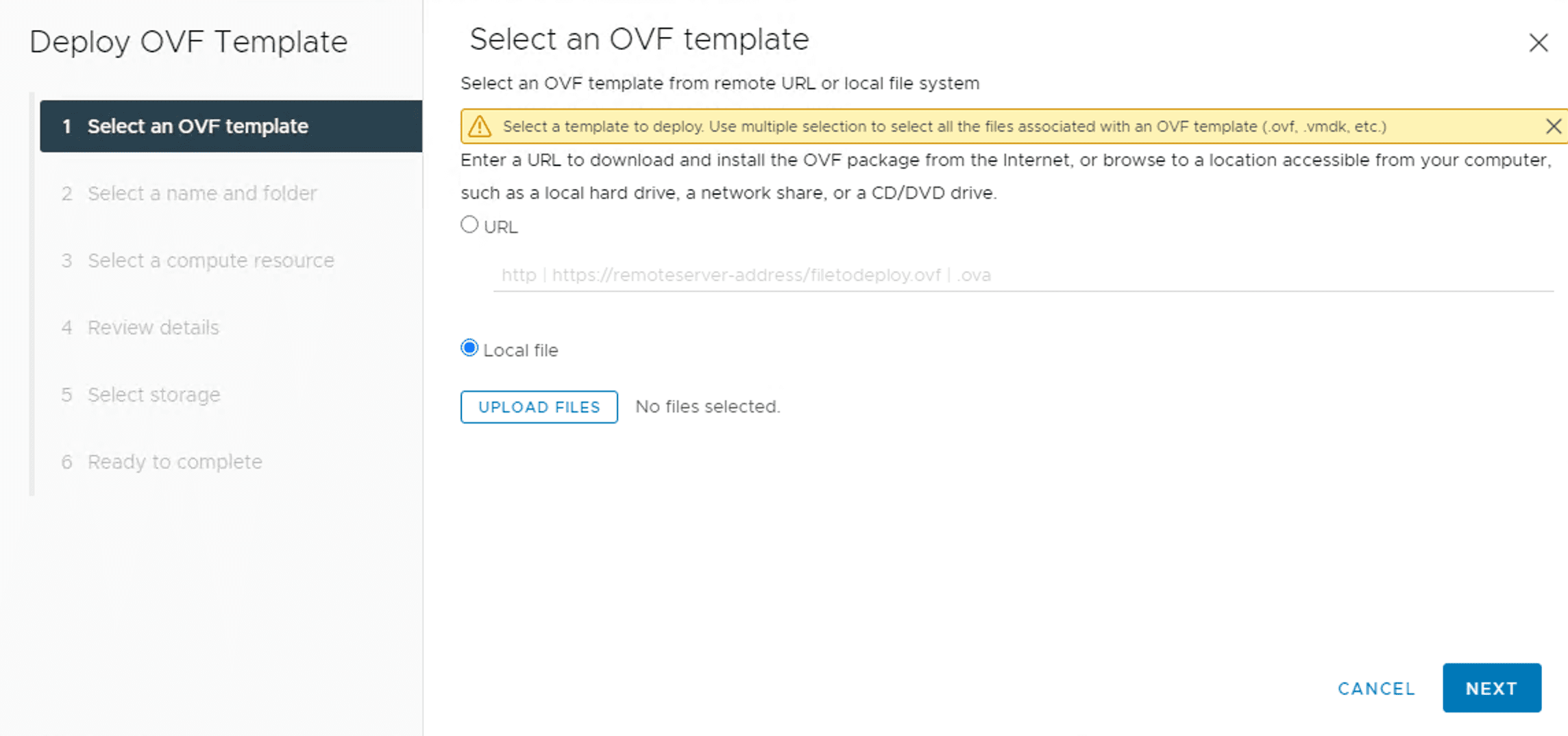
Deploying an OVF Template
Select Local file and click UPLOAD FILES.
Browse the downloaded OVA file and click Open.
Click NEXT.
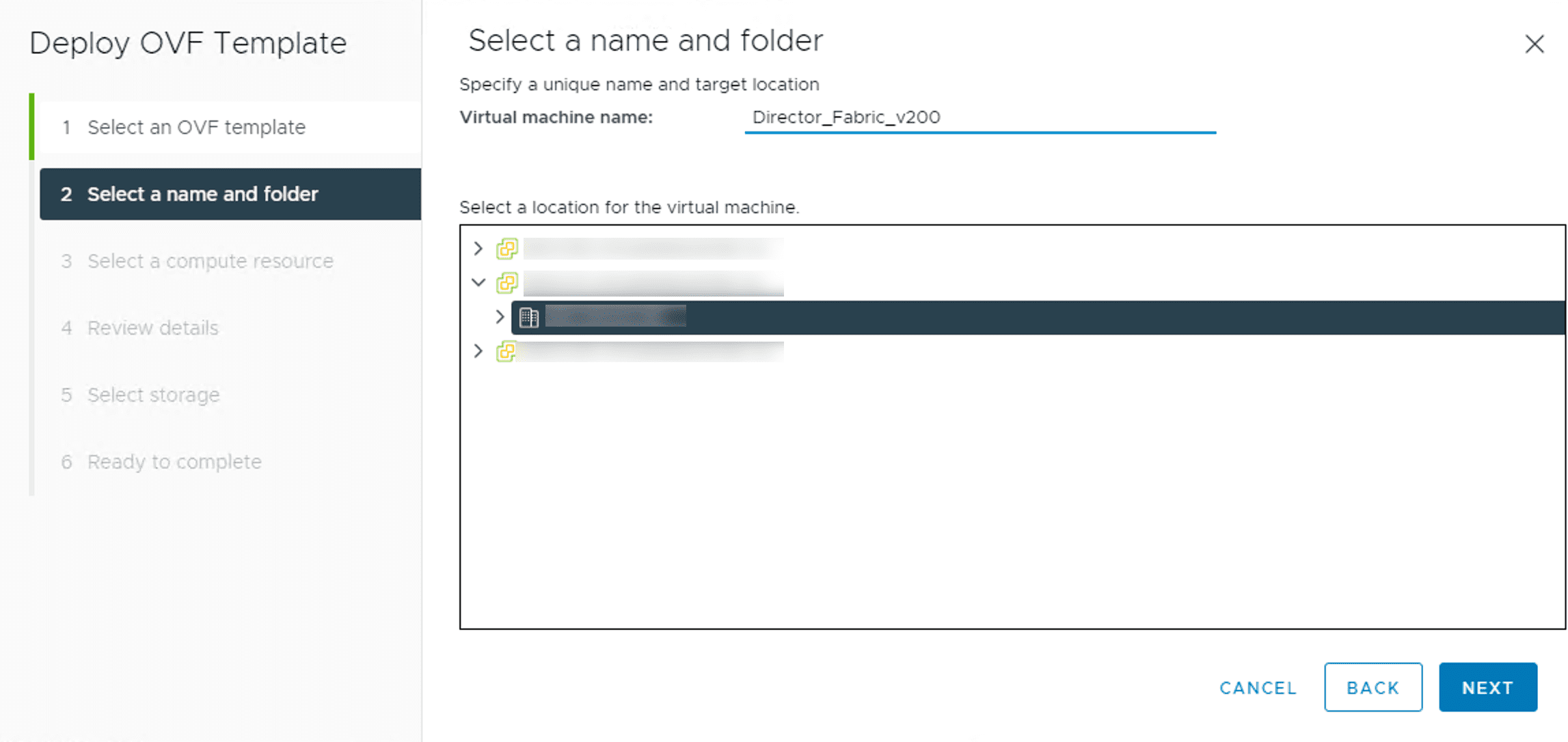
Selecting a Name and a Folder
Enter a Virtual machine name and select a location for the virtual machine.
Click NEXT.
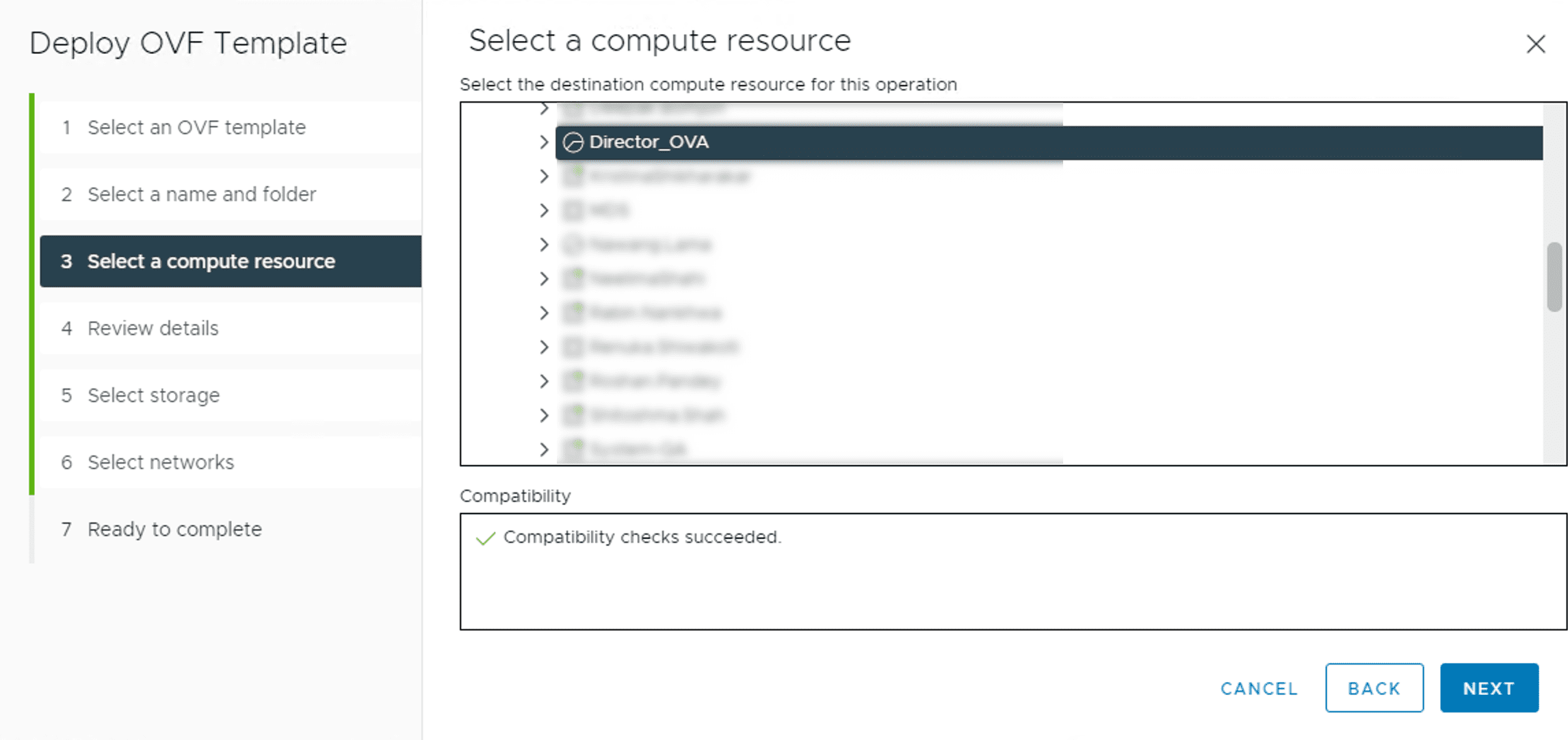
Selecting the Compute Resource
Select a compute resource for the virtual machine and click NEXT.
Review the configuration details and click NEXT.
Select virtual disk format:
Select the Eager Zeroed Thick Provision format to allocate the storage and clear all the data inside the disk array immediately.
Select the Lazy Zeroed Thick Provision format
Select the Thin Provision format to allocate the storage and clear the data of the disk array only on demand.
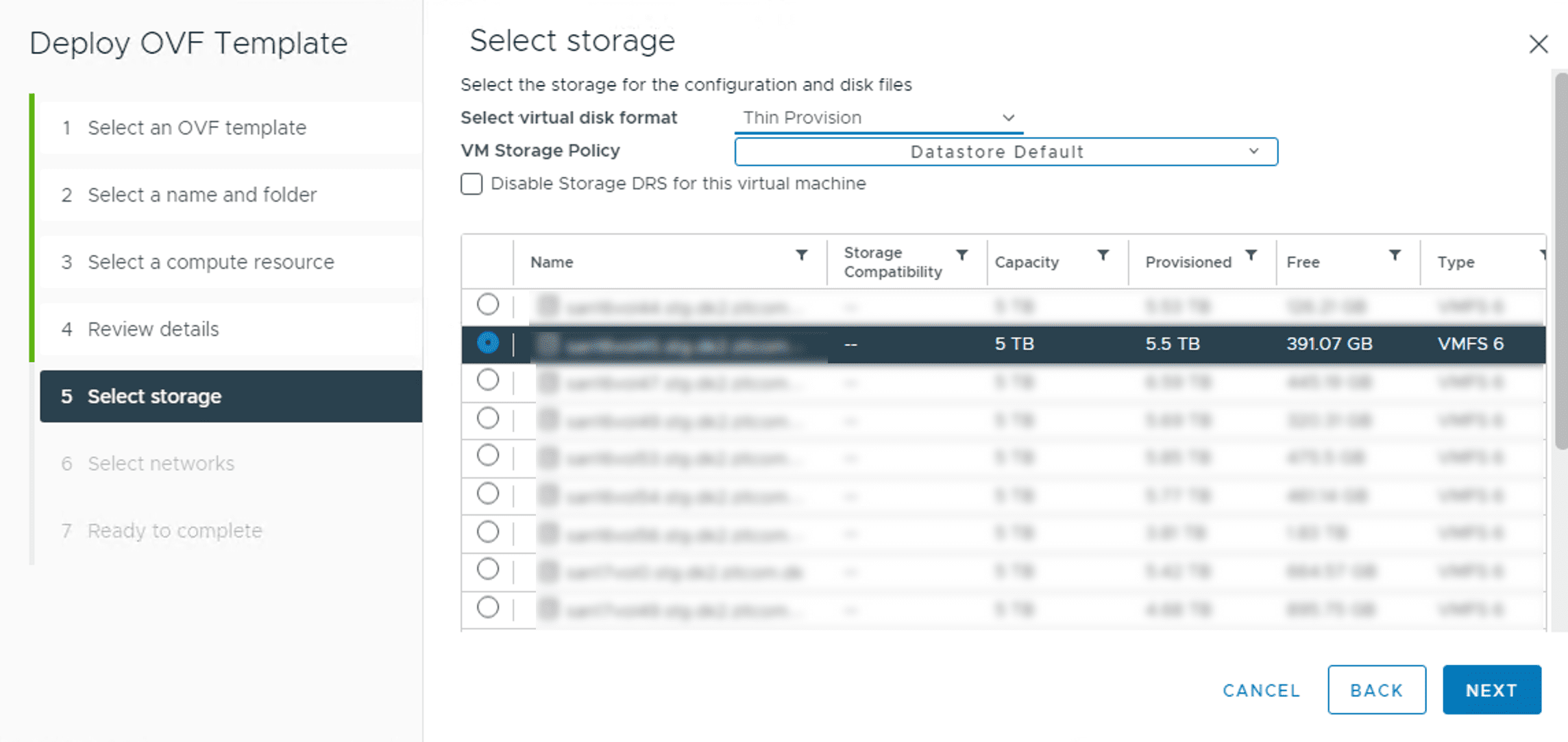
Selecting the Storage
Select a VM Storage Policy.
Select a datastore from the list to deploy the virtual machine and click NEXT.
Select Destination Network and click NEXT.
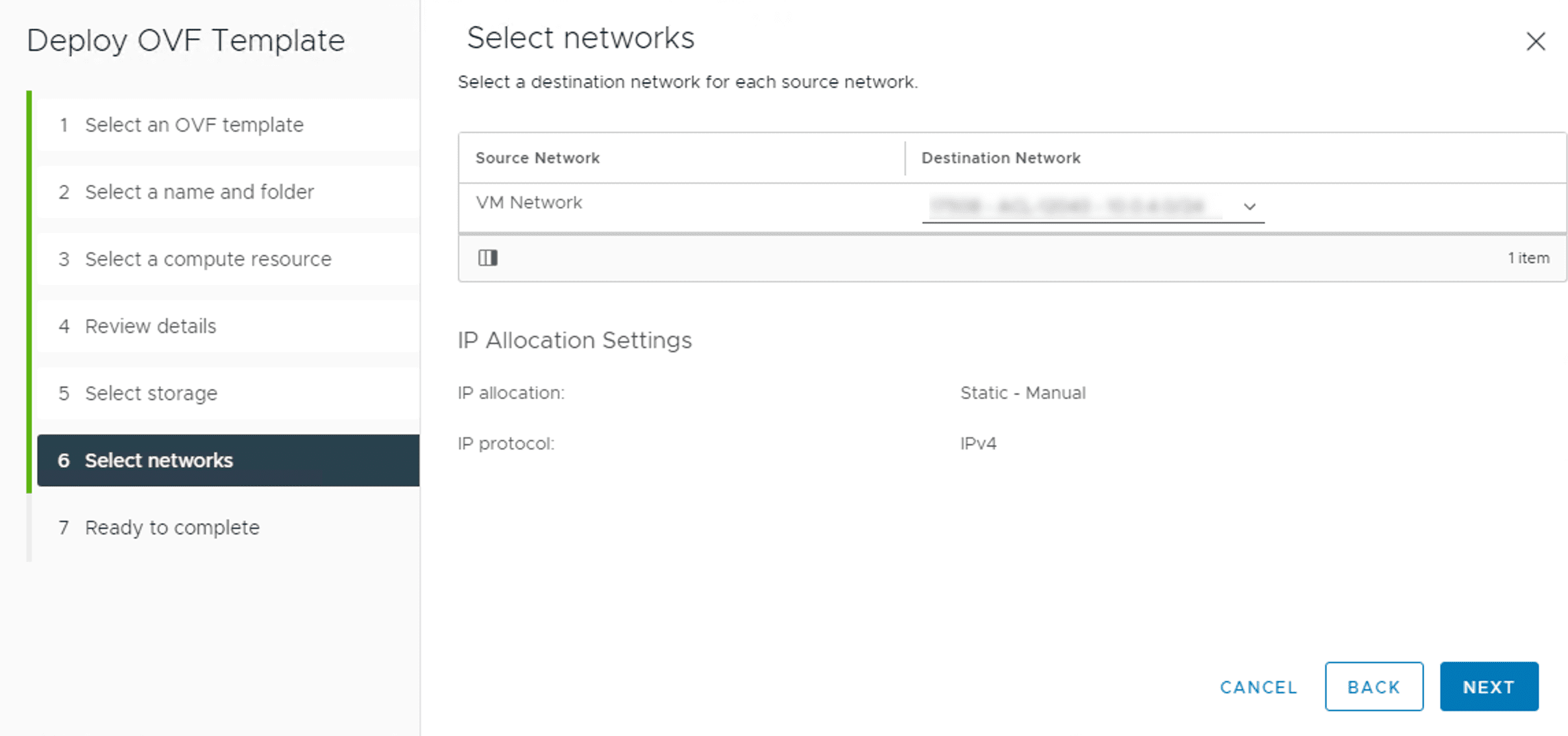
Selecting the Network
Review your configuration and click FINISH.
Click BACK to make changes or CANCEL the operation.
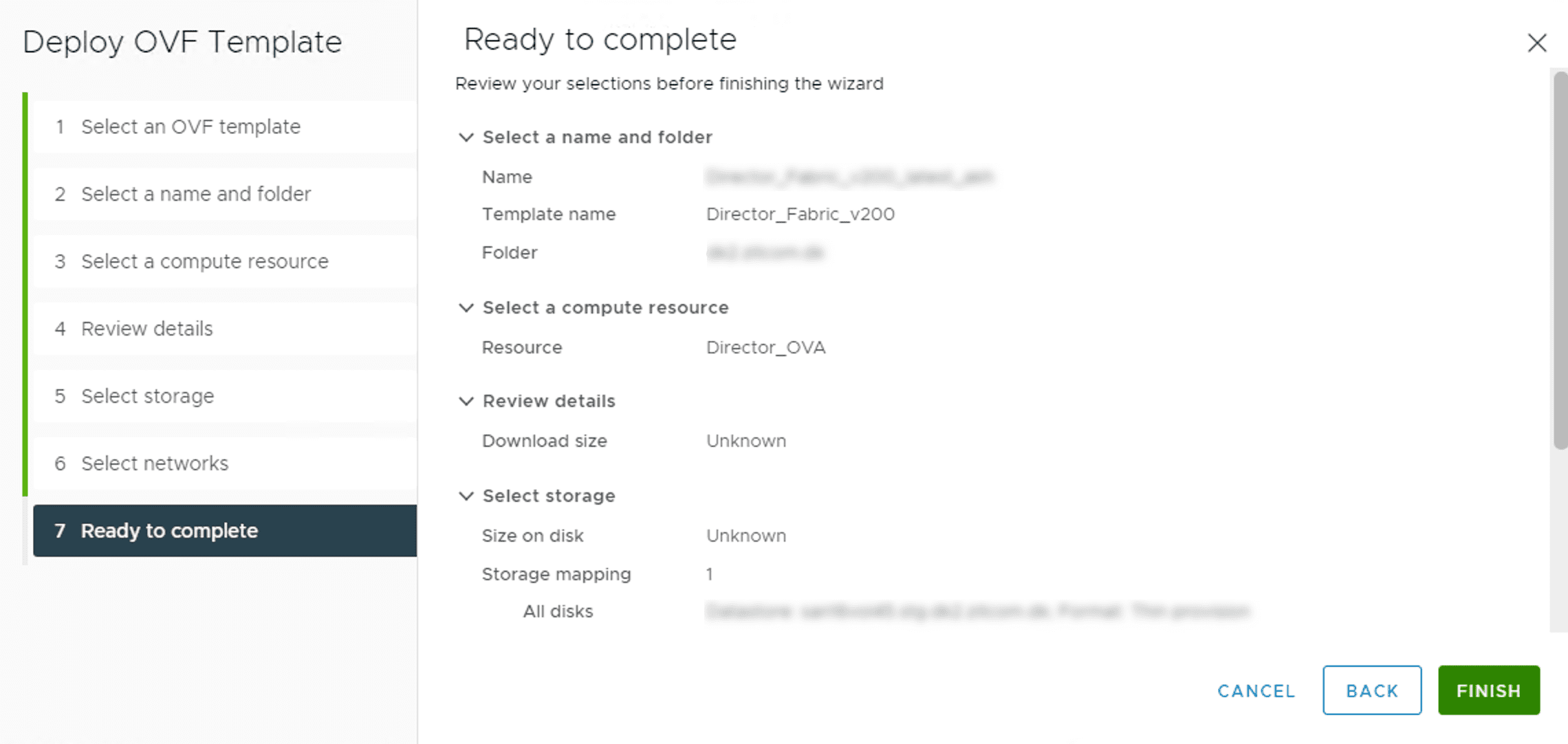
Reviewing the Selections
If you have any issues, contact the Logpoint support team. They will need your Director support connection details to fix the issue.